Admin Guides / Approval policies
Build an approval policy
Create and test approval policies in the Approval Policy Wizard, with stages, rules, conditions and standby approvers.
Open the wizard
Open Warde > Approval Policy Wizard, select Build a policy in Guided Setup step 5, or select Open in policy wizard on a policy record in the Admin Workspace. Without a policy named, the wizard lists every policy and offers Create a policy. It needs the Warde administrator role.
A new policy is active as soon as you name it. The wizard has four steps.
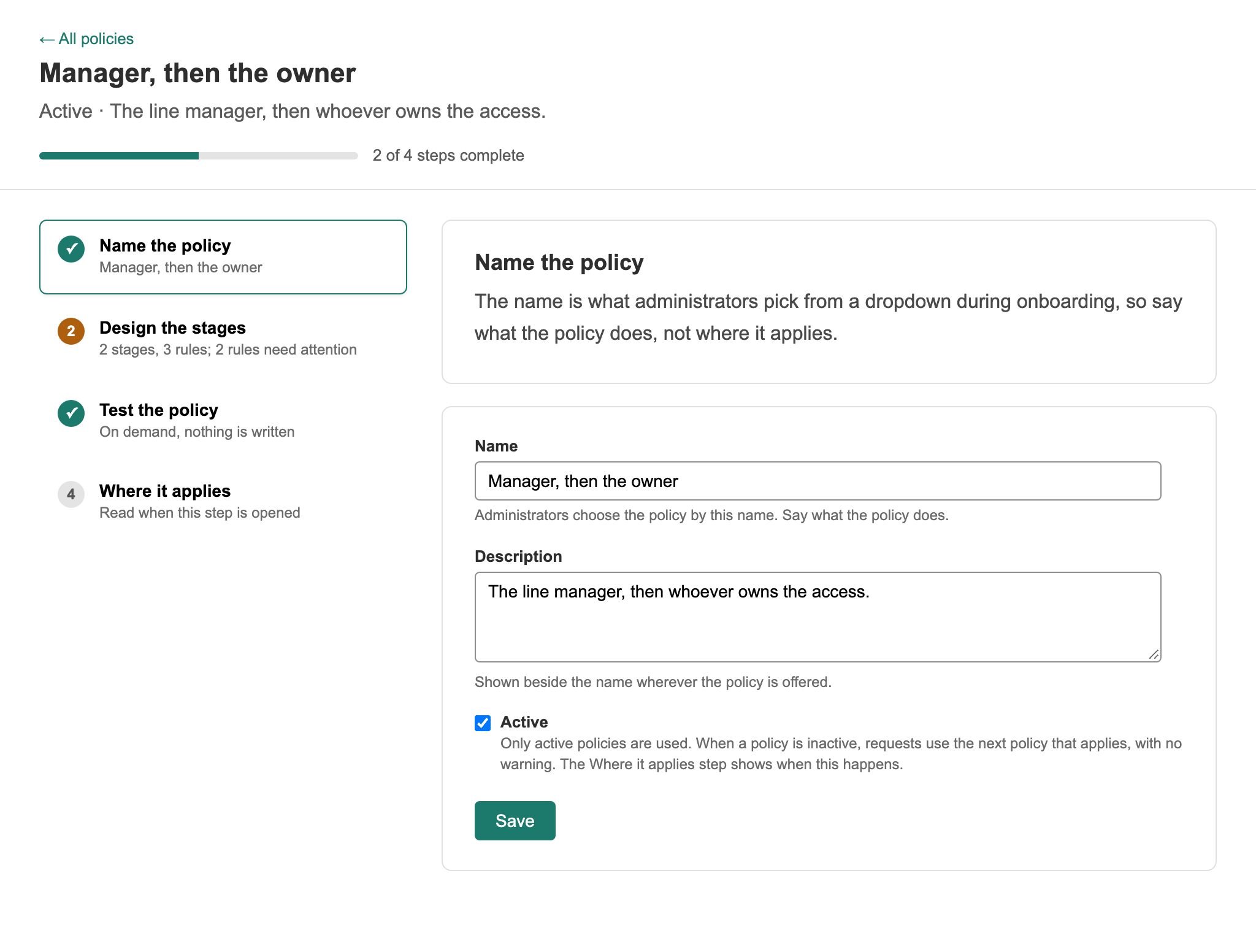
1. Name the policy
Give it a name approvers and administrators will recognise, such as Manager, then application owner. The name appears in approval records and on every record that uses the policy.
2. Design the stages
Add stages in the order they should run, and one or more rules in each stage. Rules in the same stage are asked at the same time; the next stage starts once every rule in the stage before it has approved.
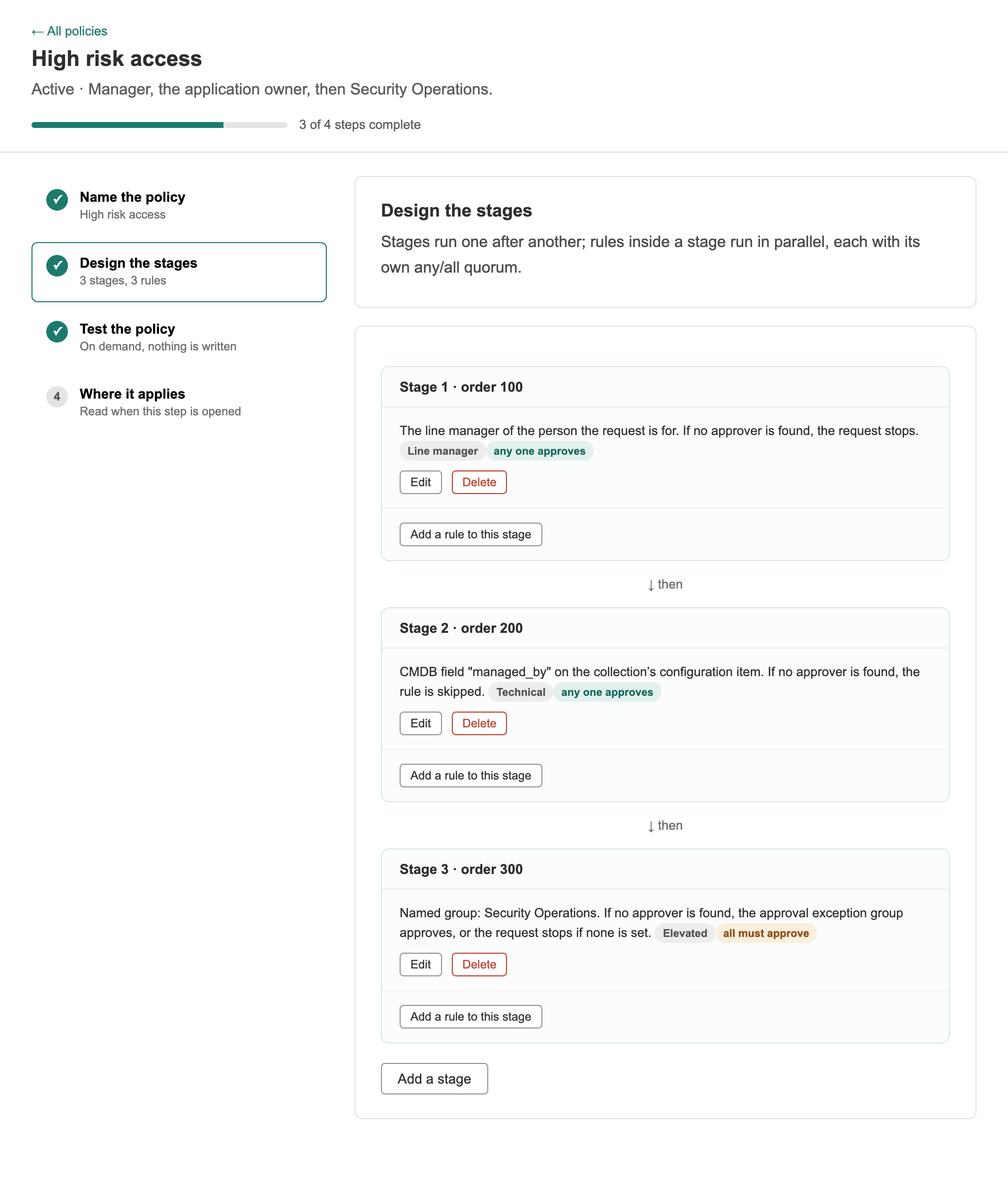
Select Edit on a rule, or Add a rule to this stage, to set it:
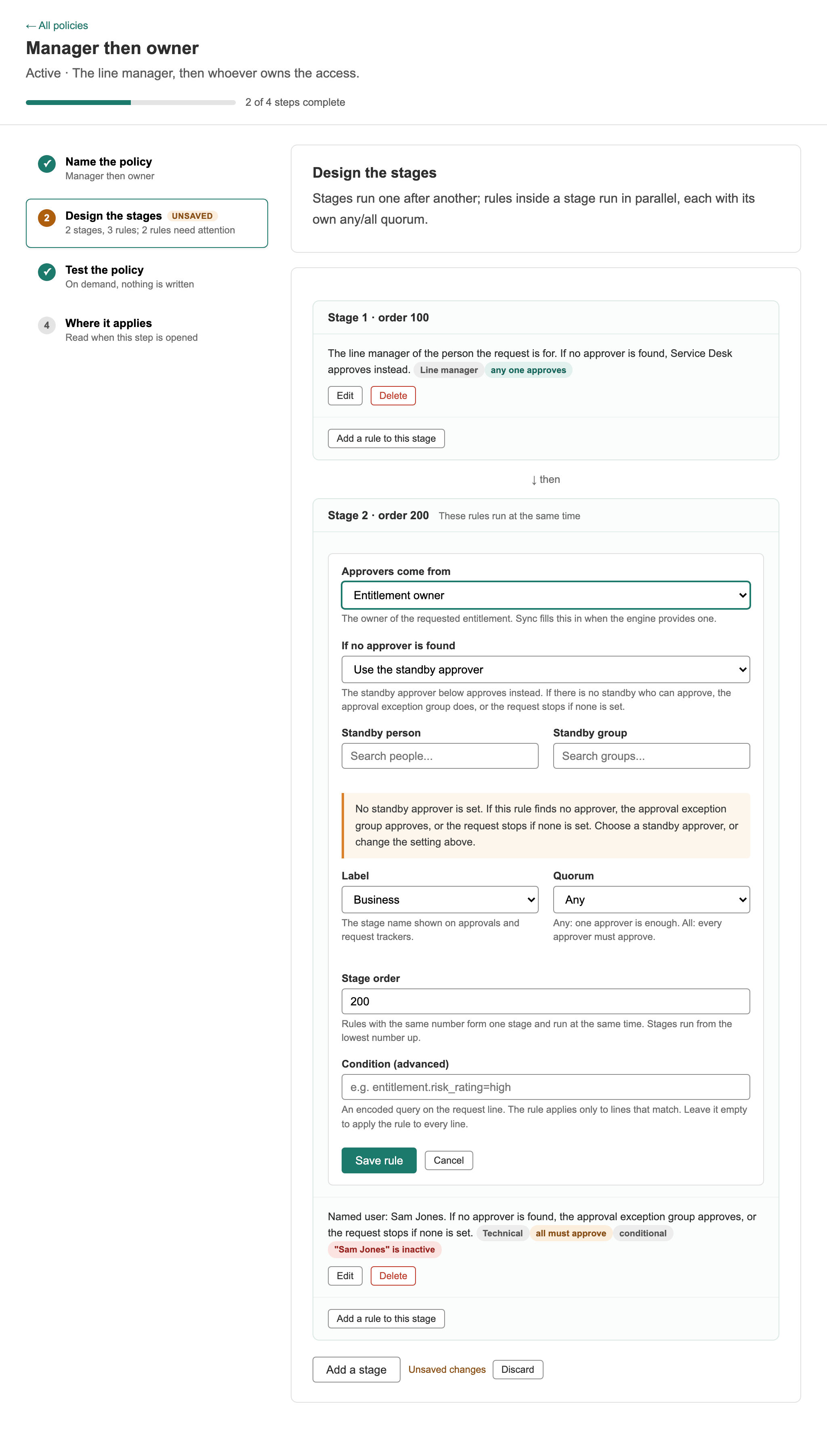
For each rule:
| Setting | Choices |
|---|---|
| Approvers come from | Line manager, entitlement owner, collection approvers, entitlement approvers, a field on the collection's configuration item, a named person, or a group. See Approvers. |
| Role filter | For collection and entitlement approvers only: ask only approvers tagged Business, Technical or Security. Empty means any. |
| How many must approve | Any one of them, or all of them |
| Label | Line manager, Technical, Business or Elevated. It names the approval in records and messages and does not change who approves. |
| Condition | Run the rule only for request lines that match, such as entitlement risk is high or account type is admin. Empty runs it every time. |
| When the rule finds nobody | Use a standby approver, skip the rule, or stop the request |
Standby approvers. For any source other than a named person or group, the rule's person and group fields are its standby: who approves when the source finds nobody. If the standby cannot act either, the approval exception group is asked. Using a standby is written to the audit history, because no rule chose that approver.
Skip moves on as if the rule had approved. Stop ends the request before approval, as described in When nobody can approve.
Inactive people, and groups with no active members, never count as approvers.
3. Test the policy
Choose a real entitlement and a real person, then select Run the preview. The wizard shows who would approve at each stage, found the same way as for a real request. Nothing is created and nobody is told.
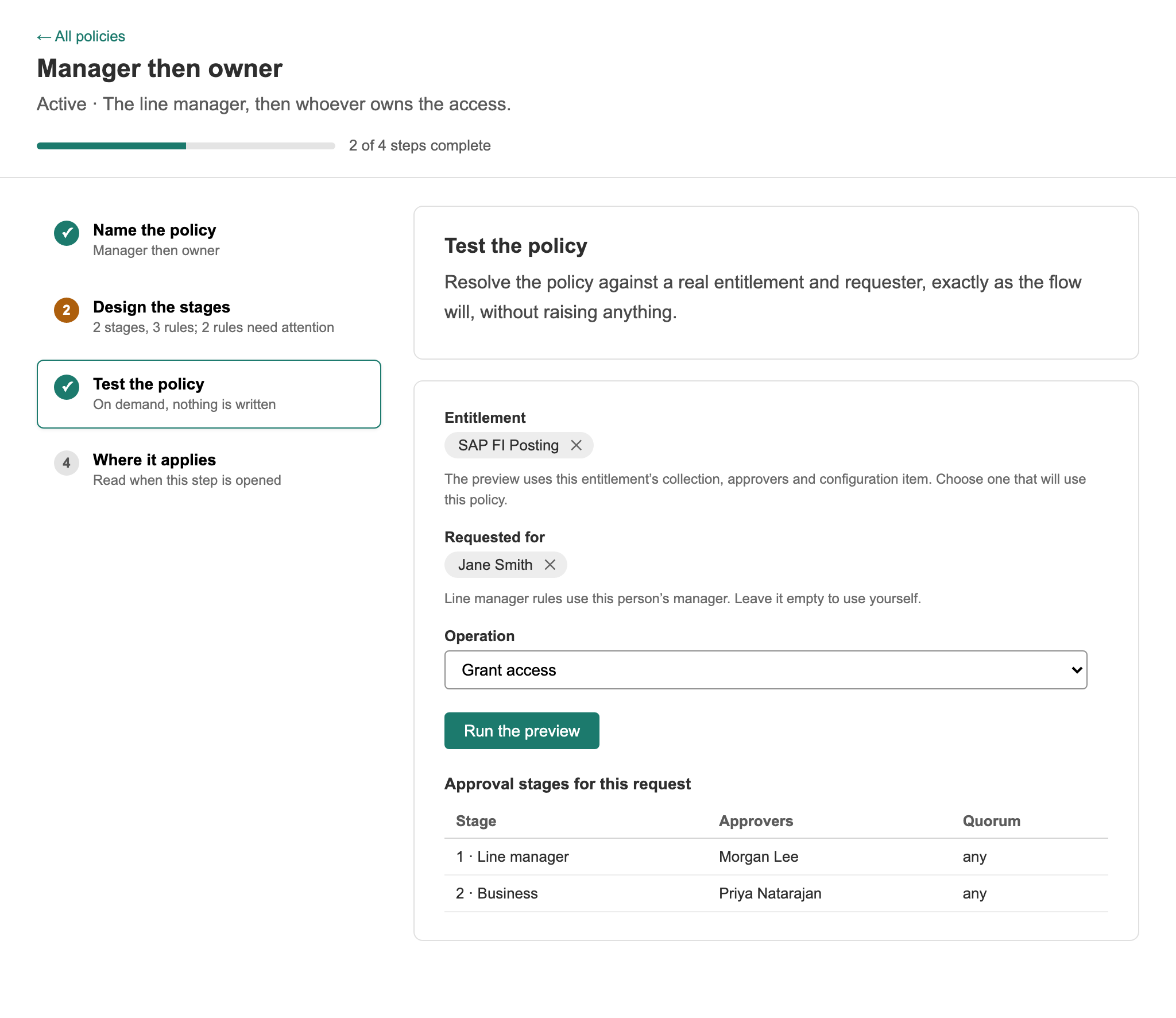
Two things a preview cannot show: a condition on requested item fields never matches in a preview, and a real request with several items can have more stages than the preview, because their stages are combined.
4. Where it applies
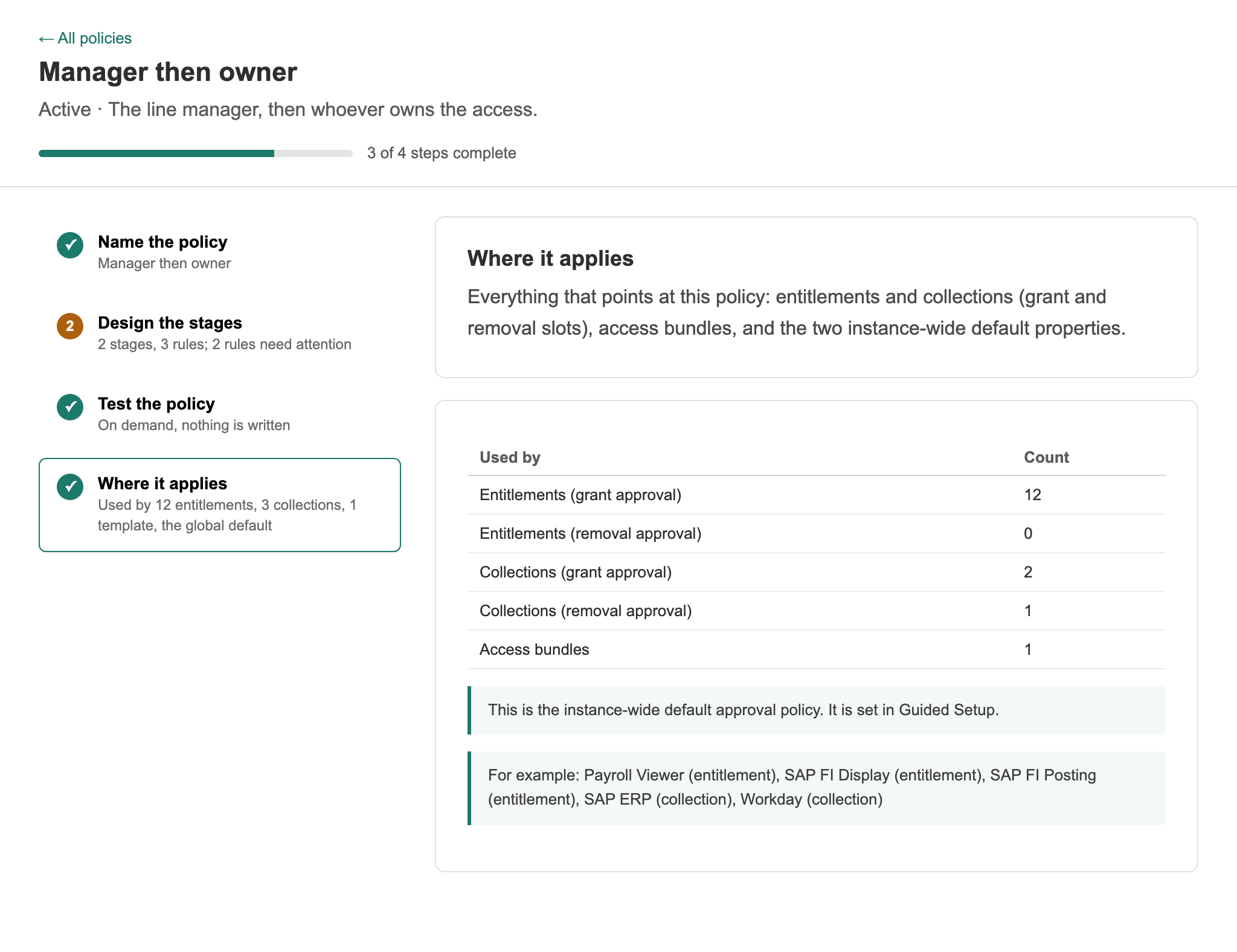
Lists everything that uses the policy: entitlements, collections, access bundles and the instance defaults. A change applies to every request submitted after you save it.
Example policies
| Need | Stages |
|---|---|
| Everyday access | Stage 1: line manager, any one |
| Sensitive access | Stage 1: line manager. Stage 2: entitlement owner, standby a named owner group. |
| Extra check only for high-risk access | Stage 1: line manager. Stage 2: collection approvers tagged Security, condition entitlement risk is high, skip if nobody is found. |
| Privileged accounts | Stage 1: line manager. Stage 2: a privileged access group, all must approve, condition account type is admin. |
| Licences | Stage 1: line manager. Stage 2: a licence approver group, condition entitlement is licensing bound. |
Attach a policy to a collection in Collection Onboarding step 4, to an entitlement on its record or drawer, to a bundle on its record, or make it the instance default in Guided Setup step 6.
Policy health
The Approval policy health tab of the Admin Workspace's Access health dashboard counts the gaps that make requests stop or skip:
- policies with no rules at all;
- rules with no approver set, or an inactive approver;
- rules on a group with no active members;
- rules that skip or stop if nobody is found;
- collections and entitlements whose policy is inactive or has no rules;
- collections with no policy of their own, or no removal policy;
- high-risk entitlements with no approval or removal policy of their own;
- inactive collection and entitlement approvers.
Each count opens the list behind it.