User Guides / Using Warde
Access bundles
Ask for a ready-made set of access for a job or a team, remove a bundle someone no longer needs, and propose a new bundle.
An access bundle is a ready-made set of access for a job or a team, such as everything a new payroll officer needs. You ask for the whole set at once, for one person or several, and everyone on the request is approved or rejected together.
You ask for one in your organisation's portal, usually Employee Center. Look for Access Bundles in the service catalog or a topic, or select Access bundles on My Access. For single items of access, use Request access instead.
Request a bundle
- Requested for starts as you. Change it if you are raising the request in someone else's name, such as a direct report. You can only choose people you are allowed to request for.
- Under Who needs this bundle, select Choose people and select everyone who needs it.
- Search the list by name or description. Each bundle shows how many items it has and who owns it, and whether the people you chose already have it. Select Choose on the bundle you need. For several people, the button says how many of them can have it, such as Choose for 3.
- Under On this request, check the bundle:
- What is in this bundle lists every item it gives. Items a person already has are not added again.
- Each person is listed with who approves the bundle for them.
- Accept the terms of use, if the bundle has any.
- Access this bundle replaces lists access the people will lose once the bundle is in place.
- If Access conflicts appears, select Check for conflicts and wait for it to finish.
- Under Why is this needed?, say what the bundle is for and why they need it, such as "New starter in payroll, starts Monday".
- Select Submit.
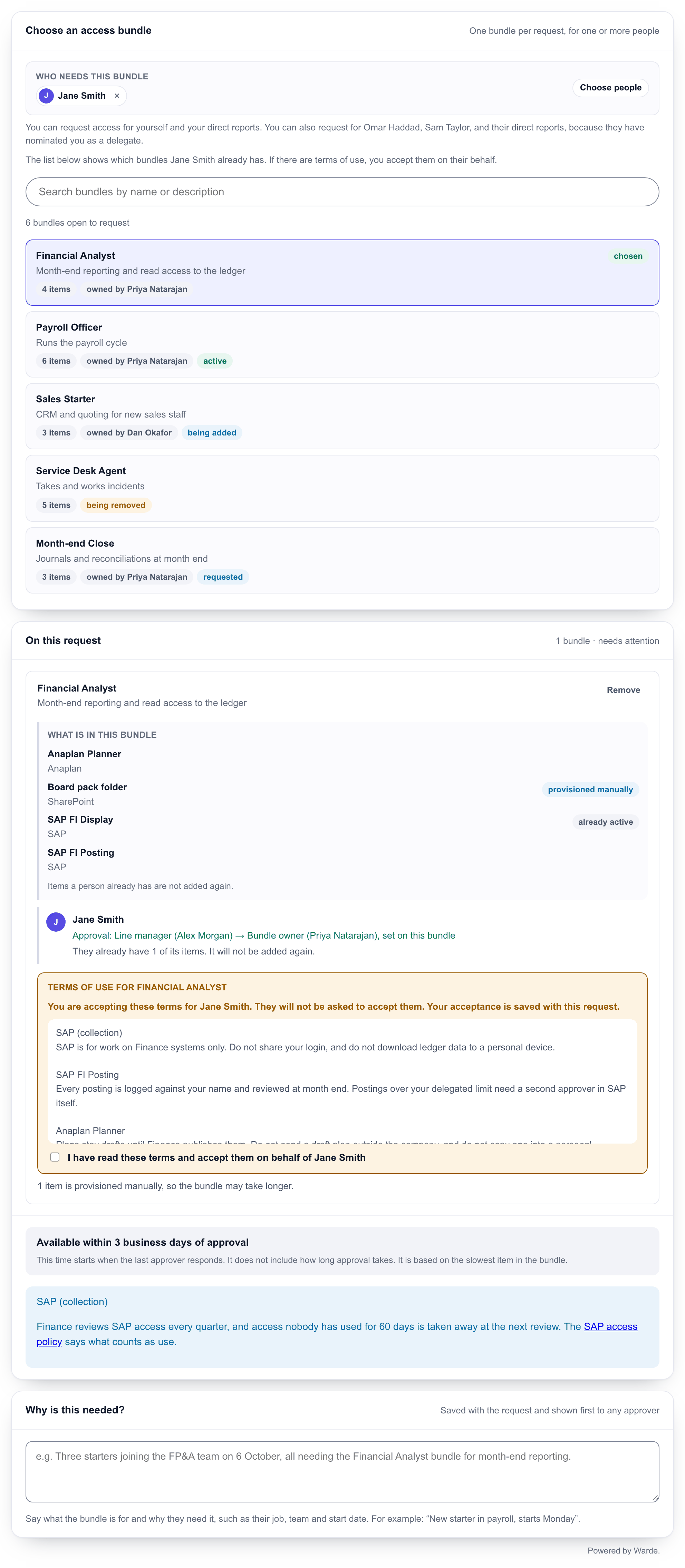
Each request is for one bundle. To ask for a second bundle, submit a new request.
When someone cannot have the bundle
The form marks anyone who cannot have the bundle, with the reason next to their name: they already have it, are already getting it, are having it removed, already have a request for it, or have no account on one of its systems. Select Remove beside their name to take them off. Everyone else on the request still gets the bundle.
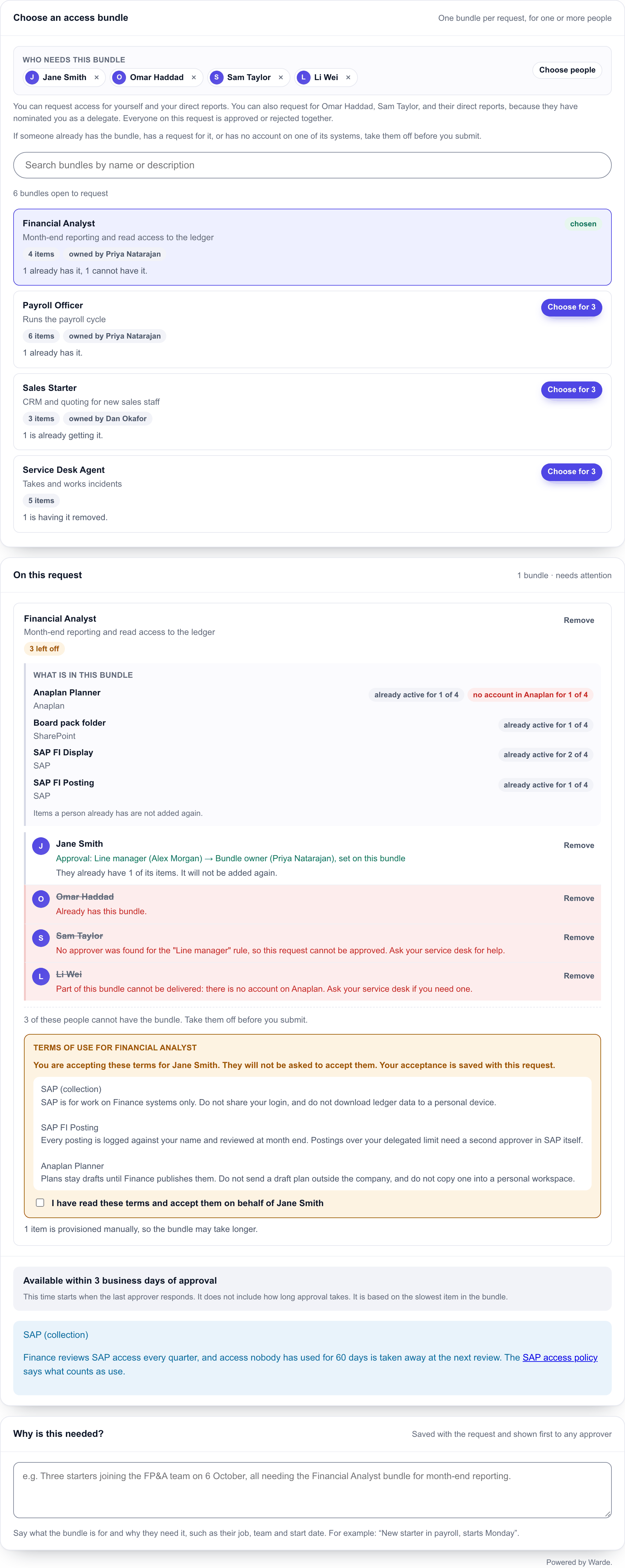
When the form refuses to submit
The form says what to fix before it sends anything, for example:
- Choose an access bundle, or choose who needs it.
- No one on the request can have the bundle. Choose another bundle, or add someone who can have it.
- Read and accept the terms of use.
- Say why the bundle is needed. The box is at the bottom of the form.
- Check for access conflicts, and take off anyone the check finds a conflict for.
Fix each one and submit again.
Remove a bundle
Use Remove Access Bundles for a bundle someone no longer needs, or select Remove beside a bundle on My Access. The whole bundle is removed, with all the access it gave that person. Access they also have another way, such as through a separate request, is not removed.
- Requested for starts as you. Change it if you are raising the request in someone else's name.
- Under Choose a bundle to remove, check the person. Select Change person to choose someone else.
- The list shows every bundle the person has, with how many items would be removed. Select Choose on the bundle to remove.
- Under On this request, check the items that will be removed and who approves the removal.
- Under Why is it no longer needed?, give the reason, such as "Left the FP&A team on 30 September."
- Select Submit.
A bundle given automatically by a rule, such as one everyone gets when they join, cannot be removed with a request. It follows the person's job or HR details, so ask your manager or service desk to change those. A single item that came in a bundle cannot be removed on its own: remove the bundle. To get a bundle back later, request it again.
Propose a new bundle
If a job needs a set of access that no bundle offers, you can propose one. An administrator reviews every proposal before anything is created.
Open Onboard an Access Bundle in the service catalog, or select Propose an access bundle on your own My Access page.
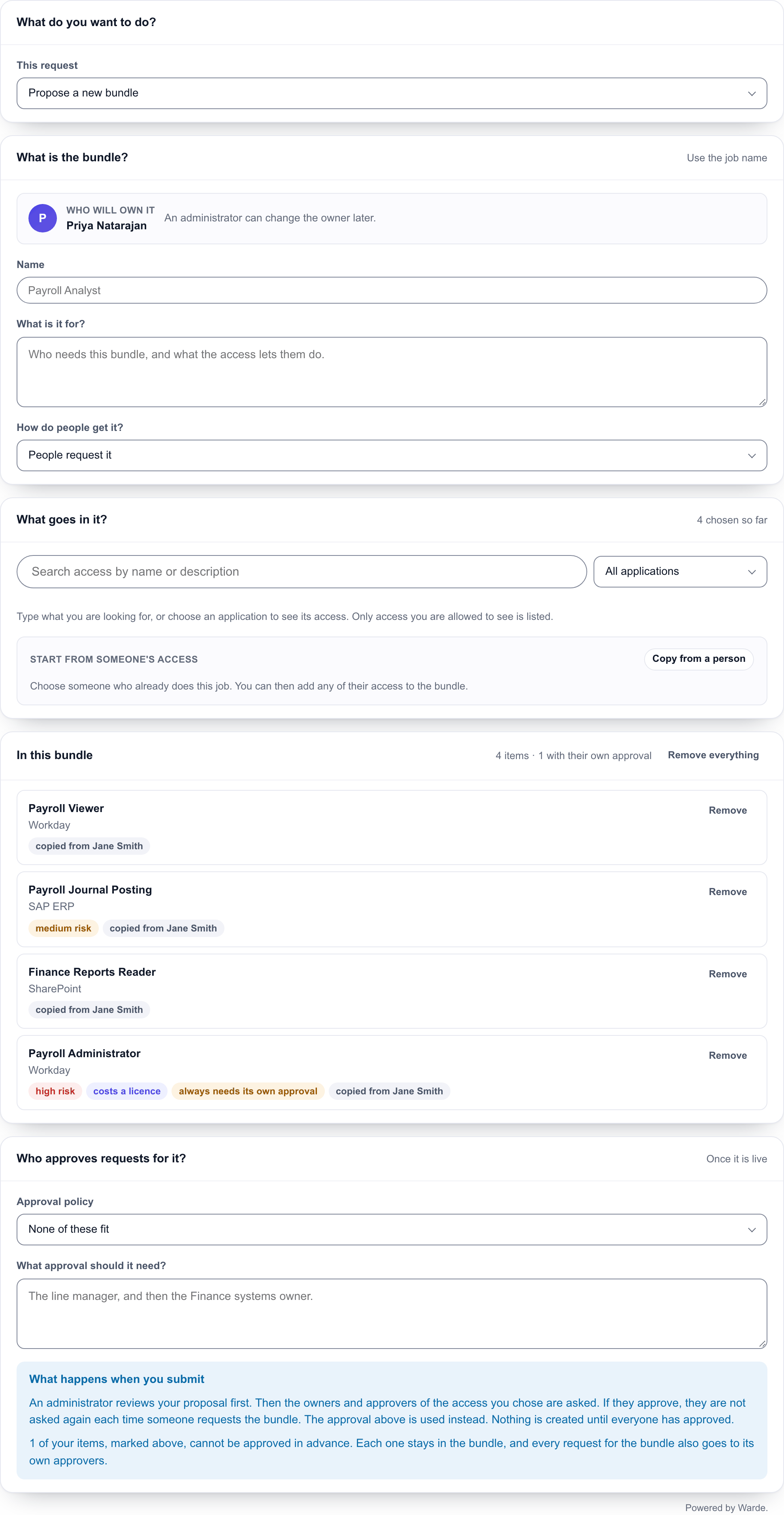
- Under What do you want to do?, choose Propose a new bundle.
- Under What is the bundle?, enter:
- Name: the job name, such as "Payroll Analyst";
- What is it for?: who needs it, and what the access lets them do;
- How do people get it?: People request it, or Everyone in a job or team gets it automatically. You are the bundle's owner. An administrator can change the owner later.
- Under What goes in it?, search for the access the job needs, or choose an application to see its access, and select Add. To start from someone who already does the job, select Copy from a person, choose them, select Do not add on anything the bundle should not include, then add the rest. You can copy from anyone you are allowed to request access for.
- Check In this bundle. Items marked always needs its own approval stay in the bundle, but every request for the bundle also goes to their own approvers. Access that cannot go in a bundle has no Add button, and the reason is shown.
- Under Who approves requests for it?, choose an approval policy. The form says who would approve. If none fits, choose None of these fit and describe the approval it should need.
- Select Submit.
What happens to a proposal
- An administrator reviews it.
- The owner and approvers of each item you chose are asked to approve it, as an ordinary approval. They approve once: people who get the bundle later are not asked each time.
- When they have all approved, the bundle is created and your request closes with a comment saying what was created.
- You get the email Your access bundle is ready to activate once every item is decided. The bundle goes live when an administrator activates it. People can then request it with Access Bundles, unless everyone in a job or team gets it automatically.
If the administrator or any approver rejects the proposal, nothing is created and the request closes with a comment saying why. To try again, submit a new proposal.
Your proposal appears under My Requests as "New access bundle" and the bundle's name. It reads Waiting for Approval until both approvals are done. My Access does not list proposals.
To change what a live bundle gives, choose Change what is in a live bundle on the same form. Propose a bundle in the administrator guide describes what administrators do with proposals and changes.
After you submit
Your request appears under My Requests in the portal, with a number such as RITM0012345. See Check how a request is going for where to follow it and what each stage means.
Asking for someone else
You can ask for people your organisation lets you request for. By default that is yourself and your direct reports; your administrator may allow more or less. The person you ask for must be able to use Warde themselves; if they cannot, the form says so before you submit, and your service desk can help. Everyone on a request is put on its watch list so they can follow it.